 Skip to content

How to Set Up IPTV M3U Windows
Choosing the Right IPTV Player for Windows
Setting up IPTV M3U Windows is a straightforward process, but it begins with selecting the right IPTV player. The choice of player can significantly impact your streaming experience. Here are some popular options:
- IPTV Smarters Pro: Known for its user-friendly interface, this player supports M3U playlists and is compatible with various devices, including Windows. It allows users to easily enter their subscription details and load M3U playlists for seamless streaming.
- VLC Media Player: A versatile option that supports a wide range of media formats, VLC can also handle M3U playlists effectively. It is free and widely used, making it a great choice for many users.
- Kodi: This open-source media player is highly customizable and supports various IPTV add-ons, enhancing the IPTV experience on Windows devices.

When selecting an IPTV player for Windows, consider factors such as compatibility with your Windows version, ease of use, and the ability to support M3U playlists.
Step-by-Step Installation and Configuration Guide
Once you have chosen your IPTV player, follow these steps to set up IPTV M3U on Windows:
- Download the IPTV Player:
- Visit the official website of your chosen IPTV player (e.g., IPTV Smarters Pro).
- Download the installation file compatible with your Windows version.
- Install the Player:
- Open the downloaded file and follow the on-screen instructions to install the player on your Windows PC.
- Obtain Your M3U Playlist:
- Ensure you have a valid M3U playlist URL from your IPTV service provider. This URL is essential for accessing channels and content.
- Load the M3U Playlist:
- Open your IPTV player.
- Look for an option to add a playlist or stream. This is usually found in the settings or main menu.
- Select Add M3U URL and paste your playlist URL into the provided field.
- Configure Settings:
- Adjust any necessary settings within the player to optimize your streaming experience. This may include video quality settings, buffer settings, and more.
- Start Streaming:
- Once your M3U playlist is loaded, you can start browsing channels and enjoy your IPTV content.
Benefits of Using IPTV M3U on Windows Devices
Using IPTV M3U on Windows offers several advantages:
- Access to Thousands of Channels: Enjoy a wide variety of local and international channels, including live TV, movies, and series.
- High-Quality Streaming: With a stable internet connection, you can experience high-definition streaming without interruptions.
- User-Friendly Interface: Players like IPTV Smarters Pro provide an intuitive interface, making it easy for users to navigate through channels and content.
- On-Demand Content: Many IPTV services offer Video on Demand (VOD) options, allowing you to watch your favorite shows and movies at your convenience.
For more information on IPTV channels and services, visit Pro IPTV Suomi. If you need assistance with installation, check out our installation guide.
By following these steps, you can easily set up IPTV M3U on Windows and enjoy a world of entertainment right from your PC.
How to Set Up IPTV M3U on Windows
Choosing the Right IPTV Player for Windows
Setting up IPTV M3U on Windows begins with selecting the right IPTV player. The choice of player can significantly impact your streaming experience. Here are some popular options that cater to various user needs:
- IPTV Smarters Pro: This player is renowned for its user-friendly interface and robust features. It supports M3U playlists and is compatible with various devices, including Windows. Users can easily enter their subscription details and load M3U playlists for seamless streaming.
- VLC Media Player: A versatile and widely used option, VLC supports a broad range of media formats, including M3U playlists. It is free to download and offers a straightforward setup process, making it a great choice for many users.
- Kodi: This open-source media player is highly customizable and supports various IPTV add-ons, enhancing the IPTV experience on Windows devices. Kodi allows users to tailor their viewing experience to their preferences.
When selecting an IPTV player for Windows, consider factors such as compatibility with your Windows version, ease of use, and the ability to support M3U playlists effectively.
Step-by-Step Installation and Configuration Guide
Once you have chosen your IPTV player, follow these steps to set up IPTV M3U on Windows:
- Download the IPTV Player:
- Visit the official website of your chosen IPTV player (e.g., IPTV Smarters Pro).
- Download the installation file compatible with your Windows version.
- Install the Player:
- Open the downloaded file and follow the on-screen instructions to install the player on your Windows PC.
- Obtain Your M3U Playlist:
- Ensure you have a valid M3U playlist URL from your IPTV service provider. This URL is essential for accessing channels and content.
- Load the M3U Playlist:
- Open your IPTV player.
- Look for an option to add a playlist or stream, usually found in the settings or main menu.
- Select Add M3U URL and paste your playlist URL into the provided field.
- Configure Settings:
- Adjust any necessary settings within the player to optimize your streaming experience. This may include video quality settings, buffer settings, and more.
- Start Streaming:
- Once your M3U playlist is loaded, you can start browsing channels and enjoy your IPTV content.
Benefits of Using IPTV M3U on Windows Devices
Using IPTV M3U on Windows offers several advantages that enhance your viewing experience:
- Access to Thousands of Channels: Enjoy a wide variety of local and international channels, including live TV, movies, and series. This extensive selection ensures that there is something for everyone.
- High-Quality Streaming: With a stable internet connection, you can experience high-definition streaming without interruptions. This is particularly beneficial for sports events and live broadcasts.
- User-Friendly Interface: Players like IPTV Smarters Pro provide an intuitive interface, making it easy for users to navigate through channels and content. This simplicity is especially helpful for beginners.
- On-Demand Content: Many IPTV services offer Video on Demand (VOD) options, allowing you to watch your favorite shows and movies at your convenience. This flexibility is a significant advantage over traditional cable services.
For more information on IPTV channels and services, visit Pro IPTV Suomi. If you need assistance with installation, check out our installation guide.
By following these steps, you can easily set up IPTV M3U on Windows and enjoy a world of entertainment right from your PC. Whether you’re a seasoned IPTV user or a beginner, this guide will help you navigate the setup process with ease.
Managing IPTV M3U Playlists and Channels on Windows
Updating and Editing IPTV M3U Lists
Managing your IPTV M3U playlists on Windows is essential for ensuring you have access to the latest channels and content. Regularly updating and editing your playlists can enhance your viewing experience. Here’s how to effectively manage your M3U lists:
- Access Your IPTV Player: Open your chosen IPTV player on your Windows PC. Popular options like IPTV Smarters Pro or VLC Media Player allow for easy management of M3U playlists.
- Locate the Playlist Section: Navigate to the section of the player where your playlists are stored. This is typically found in the settings or main menu under “Playlists” or “Manage Playlists.”
- Update Your M3U URL:
- If you have received a new M3U URL from your IPTV service provider, you can update your existing playlist.
- Select the option to edit or update the playlist, then paste the new M3U URL into the designated field.
- Save Changes: After updating the URL, ensure you save the changes. This step is crucial for the new channels to take effect.
- Refresh the Playlist: Some players may require you to refresh the playlist manually. Look for a refresh button or option within the player to ensure all new channels are loaded.
- Check for Errors: After updating, it’s a good idea to check for any errors or channels that may not be working. If you encounter issues, consider removing and re-adding the playlist.
Adding New Channels and Custom Playlists
In addition to updating existing playlists, you may want to add new channels or create custom playlists tailored to your preferences. Here’s how to do it:
- Find New M3U Links: Search for reliable sources that provide M3U links for channels you want to add. Websites like Pro IPTV Suomi often have updated lists of channels available for IPTV users.
- Create a Custom Playlist:
- In your IPTV player, look for an option to create a new playlist.
- Name your playlist and select the option to add channels.
- Add Channels Manually:
- For each channel you want to add, enter the M3U URL provided by your source.
- You can also add channel names and organize them into categories for easier navigation.
- Save and Organize: Once you’ve added all desired channels, save your custom playlist. Organizing channels into categories (e.g., Sports, Movies, News) can enhance your viewing experience.
- Test Your New Channels: After adding new channels, test them to ensure they are working correctly. If any channels do not load, double-check the M3U URLs for accuracy.
Benefits of Managing IPTV M3U Playlists on Windows
Effectively managing your IPTV M3U playlists on Windows offers several benefits:
- Personalized Viewing Experience: By creating custom playlists, you can tailor your viewing experience to your preferences, ensuring you have quick access to your favorite channels.
- Access to Updated Content: Regularly updating your playlists allows you to access the latest channels and content, keeping your viewing options fresh and exciting.
- Improved Organization: Organizing channels into categories makes it easier to find what you want to watch, enhancing your overall user experience.
- Flexibility: The ability to add or remove channels as needed gives you the flexibility to adapt your IPTV service to your changing interests.
For more information on IPTV channels and services, visit Pro IPTV Suomi. If you need assistance with installation or have questions about managing your playlists, check out our installation guide or contact us directly via WhatsApp at this link.
By following these steps, you can effectively manage your IPTV M3U playlists on Windows, ensuring a seamless and enjoyable streaming experience. Whether you’re updating existing playlists or creating new ones, these tips will help you get the most out of your IPTV service.
Troubleshooting IPTV M3U Issues on Windows
Common Playback and Buffering Problems
When using IPTV M3U on Windows, users may encounter various playback and buffering issues that can disrupt their viewing experience. Understanding these common problems and knowing how to address them is essential for a smooth streaming experience. Here are some frequent issues and their solutions:
- Buffering Issues:
- Cause: Buffering often occurs due to a slow or unstable internet connection. If your internet speed is below the recommended 10 Mbps, you may experience interruptions.
- Solution: Check your internet speed using online tools like Speedtest.net. If your speed is low, consider upgrading your internet plan or switching to a wired connection for better stability.
- Playback Errors:
- Cause: Playback errors can arise from outdated IPTV player software or incorrect M3U playlist URLs.
- Solution: Ensure that your IPTV player, such as IPTV Smarters Pro or VLC Media Player, is updated to the latest version. Additionally, verify that the M3U URL you are using is correct and active.
- Channel Not Found:
- Cause: This issue may occur if the channel has been removed from the M3U playlist or if the playlist is outdated.
- Solution: Regularly update your M3U playlist by obtaining the latest URL from your IPTV service provider. You can find updated playlists on sites like Pro IPTV Suomi.
- Audio/Video Sync Issues:
- Cause: Sometimes, the audio and video may not sync properly, leading to a frustrating viewing experience.
- Solution: Check the settings in your IPTV player. Many players have options to adjust audio delay. Experiment with these settings to achieve proper synchronization.
- Frequent Disconnections:
- Cause: Frequent disconnections can be caused by network instability or issues with the IPTV service itself.
- Solution: Restart your router and the IPTV player. If the problem persists, contact your IPTV provider for assistance.
Technical Fixes and Tips for Smooth Streaming
To enhance your experience with IPTV M3U on Windows, consider implementing the following technical fixes and tips:
- Use a VPN:
- A VPN can help improve your streaming experience by providing a more stable connection and bypassing any throttling imposed by your Internet Service Provider (ISP). Ensure you choose a reliable VPN service that supports streaming.
- Adjust Buffer Settings:
- Many IPTV players allow you to adjust buffer settings. Increasing the buffer size can help reduce playback interruptions, especially on slower connections.
- Clear Cache:
- Over time, your IPTV player may accumulate cache data that can slow down performance. Regularly clearing the cache can help improve loading times and overall performance. Check your player’s settings for cache management options.
- Optimize Windows Settings:
- Ensure that your Windows operating system is optimized for performance. Close unnecessary applications running in the background to free up system resources. This can help your IPTV player run more smoothly.
- Check Firewall and Antivirus Settings:
- Sometimes, firewall or antivirus software can block the IPTV player from accessing the internet. Ensure that your IPTV player is whitelisted in your firewall and antivirus settings.
- Regularly Update M3U Playlists:
- Keeping your M3U playlists updated is crucial for accessing the latest channels and content. Regularly check for new playlist URLs from your IPTV provider and update them in your player.
- Seek Support:
- If you continue to experience issues, don’t hesitate to reach out to your IPTV provider’s support team. They can provide specific troubleshooting steps tailored to their service.
Frequently Asked Questions about IPTV M3U on Windows
Which IPTV Players Work Best on Windows?
When it comes to using IPTV M3U on Windows, selecting the right IPTV player is crucial for a seamless streaming experience. Here are some of the best IPTV players that are compatible with Windows:
- IPTV Smarters Pro: This player is highly recommended for its user-friendly interface and robust features. It supports M3U playlists and allows users to easily enter their subscription details for quick access to channels.
- VLC Media Player: A versatile and widely used option, VLC can handle a variety of media formats, including M3U playlists. It is free to download and offers a straightforward setup process, making it a popular choice among users.
- Kodi: This open-source media player is highly customizable and supports various IPTV add-ons, enhancing the IPTV experience on Windows devices. Kodi allows users to tailor their viewing experience to their preferences.
- Perfect Player: Known for its sleek interface, Perfect Player is another excellent choice for Windows users. It supports M3U playlists and offers features like EPG (Electronic Program Guide) integration.
Is it Legal to Use IPTV M3U Streams in Finland?
The legality of using IPTV M3U streams in Finland depends on the source of the content. Here are some important points to consider:
- Licensed Content: If the IPTV service provides access to licensed content, it is generally considered legal. Always choose a reputable provider that offers legally obtained channels.
- Unauthorized Services: Accessing IPTV services that stream copyrighted content without permission can lead to legal issues. Users should be cautious and ensure they are using legitimate services.
- Consumer Rights: Finnish law protects consumers, and users have the right to seek refunds or compensation if the service does not meet promised standards. Always review the terms and conditions of your IPTV provider.
- Using VPNs: While using a VPN is legal in Finland, it should not be used to access unauthorized content. A VPN can enhance your privacy while streaming but does not exempt you from legal responsibilities.
How to Update IPTV M3U Playlist on Windows?
Keeping your IPTV M3U playlist updated is essential for accessing the latest channels and content. Here’s how to do it:
- Open Your IPTV Player: Launch the IPTV player you are using on your Windows PC.
- Locate the Playlist Section: Navigate to the settings or playlist management section of the player.
- Update the M3U URL: If you have a new M3U URL from your IPTV provider, select the option to edit or update the playlist. Paste the new URL into the designated field.
- Save Changes: Ensure you save the changes after updating the URL.
- Refresh the Playlist: Some players may require you to refresh the playlist manually to load the new channels.
Can I Stream IPTV with a VPN on Windows in Finland?
Yes, you can stream IPTV M3U on Windows using a VPN in Finland. Here are some benefits of using a VPN:
- Enhanced Privacy: A VPN encrypts your internet connection, providing an additional layer of security while streaming.
- Bypass Throttling: If your ISP throttles your internet speed for streaming, a VPN can help bypass these restrictions, allowing for smoother playback.
- Access to Geo-Restricted Content: A VPN can help you access content that may be restricted in your region by masking your IP address.
Conclusion: Why Choose IPTV M3U for Your Windows Experience
In conclusion, utilizing IPTV M3U on Windows offers an incredible opportunity to access a vast array of channels and content right from your computer. Here are some key benefits that make this setup a fantastic choice:
- Extensive Channel Access: Enjoy thousands of local and international channels, including live TV, movies, and series, all at your fingertips.
- User-Friendly Setup: With our detailed setup guides, you can easily install and configure your IPTV player, ensuring a smooth start to your streaming journey.
- 24/7 Support: Our dedicated support team is available around the clock to assist you with any questions or issues you may encounter.
- Up-to-Date Content: Regularly updated playlists ensure you have access to the latest channels and content, keeping your viewing experience fresh and exciting.
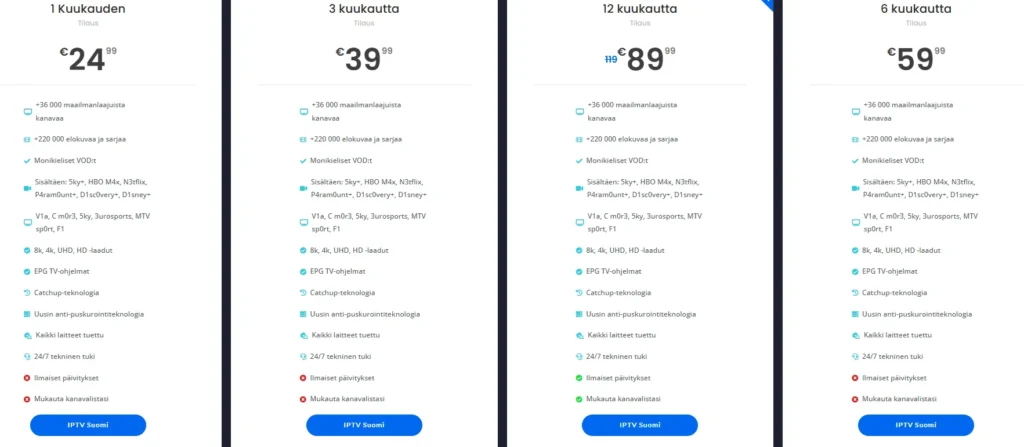
If you’re ready to enhance your entertainment experience with IPTV M3U on Windows, we invite you to explore our subscription options. Visit our pricing page for more details, or if you have any questions, feel free to reach out via WhatsApp at this link. We’re here to help you every step of the way!
