 Skip to content
How to Install IPTV M3U Firestick
Prerequisites for IPTV Fire TV Setup
Before diving into the installation of IPTV M3U Firestick, it’s essential to ensure that you have the necessary prerequisites in place. Here’s what you need:

- Firestick Device: Make sure your Firestick is set up and connected to your TV.
- Internet Connection: A stable internet connection is crucial for streaming. Ideally, you should have a speed of at least 10 Mbps for smooth playback.
- IPTV Subscription: Obtain a valid IPTV subscription that provides you with M3U playlist links. This is essential for accessing channels and content.
- IPTV Player: Download a compatible IPTV player on your Firestick. Popular options include IPTV Smarters Pro, which is user-friendly and supports M3U playlists.
Step-by-Step Installation Guide for Firestick IPTV App
Installing IPTV M3U on Firestick is a straightforward process. Follow these steps to get started:
- Enable Apps from Unknown Sources:
- Go to Settings on your Firestick.
- Select My Fire TV > Developer Options.
- Turn on Apps from Unknown Sources.
- Download the IPTV Player:
- Use the Search function on your Firestick to find the Downloader app.
- Install the Downloader app.
- Install IPTV Smarters Pro:
- Open the Downloader app.
- In the URL field, enter the link to download the IPTV Smarters Pro APK file.
- Click Download and then Install once the download is complete.
- Open IPTV Smarters Pro:
- Launch the IPTV Smarters Pro app from your Firestick home screen.
- You will be prompted to enter your subscription details.
- Add M3U Playlist:
- In the app, select Load Your Playlist or File/URL.
- Choose M3U URL and enter the link provided by your IPTV service.
- Click Add User to save the playlist.
- Start Streaming:
- Once the M3U playlist is loaded, you can start browsing channels and enjoy your IPTV content.
Benefits of Using IPTV M3U on Firestick
Using IPTV M3U on Firestick offers several advantages:
- Wide Range of Channels: Access thousands of channels from various countries, including local and international options.
- User-Friendly Interface: Apps like IPTV Smarters Pro provide an intuitive interface, making it easy to navigate through channels and content.
- High-Quality Streaming: Enjoy high-definition streaming with minimal buffering, provided you have a good internet connection.
- On-Demand Content: Many IPTV services offer Video on Demand (VOD) options, allowing you to watch movies and series at your convenience.
For more information on IPTV channels and services, visit Pro IPTV Suomi. If you need assistance with installation, check out our installation guide.
By following these steps, you can easily set up IPTV M3U on Firestick and enjoy a world of entertainment right from your living room.
How to Install IPTV M3U on Firestick
Prerequisites for IPTV Fire TV Setup
Before you embark on the journey of installing IPTV M3U on Firestick, it’s crucial to ensure that you have all the necessary prerequisites in place. This will not only streamline the installation process but also enhance your overall streaming experience. Here’s what you need:
- Firestick Device: Ensure your Firestick is properly set up and connected to your TV.
- Stable Internet Connection: A reliable internet connection is essential for smooth streaming. Aim for a minimum speed of 10 Mbps to avoid buffering issues.
- Valid IPTV Subscription: Obtain a subscription that provides you with M3U playlist links. This is vital for accessing a wide range of channels and content.
- IPTV Player: Download a compatible IPTV player on your Firestick. A popular choice is IPTV Smarters Pro, known for its user-friendly interface and robust features.
Step-by-Step Installation Guide for Firestick IPTV App
Installing IPTV M3U on Firestick is a straightforward process. Follow these detailed steps to get started:
- Enable Apps from Unknown Sources:
- Navigate to Settings on your Firestick.
- Select My Fire TV > Developer Options.
- Turn on Apps from Unknown Sources to allow installations from third-party apps.
- Download the IPTV Player:
- Use the Search function on your Firestick to locate the Downloader app.
- Install the Downloader app, which will facilitate the download of the IPTV player.
- Install IPTV Smarters Pro:
- Open the Downloader app.
- In the URL field, enter the link to download the IPTV Smarters Pro APK file.
- Click Download, and once the download is complete, select Install.
- Open IPTV Smarters Pro:
- Launch the IPTV Smarters Pro app from your Firestick home screen.
- You will be prompted to enter your subscription details, which you received from your IPTV provider.
- Add M3U Playlist:
- In the app, select Load Your Playlist or File/URL.
- Choose M3U URL and enter the link provided by your IPTV service.
- Click Add User to save the playlist.
- Start Streaming:
- Once the M3U playlist is loaded, you can start browsing channels and enjoy your IPTV content.
Benefits of Using IPTV M3U on Firestick
Utilizing IPTV M3U on Firestick comes with a plethora of advantages that enhance your viewing experience:
- Extensive Channel Selection: Gain access to thousands of channels from various countries, including both local and international options.
- User-Friendly Interface: Applications like IPTV Smarters Pro offer an intuitive interface, making it easy to navigate through channels and content.
- High-Quality Streaming: Enjoy high-definition streaming with minimal buffering, provided you maintain a good internet connection.
- On-Demand Content: Many IPTV services offer Video on Demand (VOD) options, allowing you to watch movies and series at your convenience.
For more information on IPTV channels and services, visit Pro IPTV Suomi. If you need assistance with installation, check out our installation guide.
By following these steps, you can easily set up IPTV M3U on Firestick and enjoy a world of entertainment right from your living room. Whether you’re a seasoned IPTV user or a beginner, this guide will help you navigate the setup process with ease.
Using IPTV with Firestick – Tips and Troubleshooting
Fixing Common Buffering and Playback Issues
When using IPTV M3U on Firestick, you may encounter buffering and playback issues that can disrupt your viewing experience. Here are some effective tips to help you troubleshoot and resolve these common problems:
- Check Your Internet Connection:
- Ensure that your internet connection is stable and has sufficient speed. A minimum of 10 Mbps is recommended for smooth streaming.
- You can test your internet speed using various online speed test tools.
- Restart Your Firestick:
- Sometimes, a simple restart can resolve buffering issues. Unplug your Firestick from the power source, wait for about 30 seconds, and then plug it back in.
- Close Background Applications:
- If you have multiple applications running in the background, they may consume bandwidth and resources. Close any unnecessary apps to free up memory and improve performance.
- Use a Wired Connection:
- If possible, connect your Firestick to the internet using an Ethernet cable instead of relying on Wi-Fi. This can provide a more stable connection and reduce buffering.
- Adjust Streaming Quality:
- Some IPTV players allow you to adjust the streaming quality. Lowering the quality can help reduce buffering, especially if your internet connection is not optimal.
- Update Your IPTV Player:
- Ensure that your IPTV player, such as IPTV Smarters Pro, is updated to the latest version. Updates often include performance improvements and bug fixes.
- Clear Cache:
- Clearing the cache of your IPTV player can help improve performance. Go to Settings > Applications > Manage Installed Applications, select your IPTV player, and choose Clear Cache.
How to Update Your M3U Playlists on Firestick
Keeping your M3U playlists updated is crucial for accessing the latest channels and content. Here’s how to easily update your M3U playlists on Firestick:
- Open IPTV Smarters Pro:
- Launch the IPTV Smarters Pro app from your Firestick home screen.
- Access Playlist Settings:
- Navigate to the settings or options menu within the app. This is usually represented by a gear icon.
- Update M3U URL:
- Locate the section for managing your playlists. Here, you can either edit the existing M3U URL or add a new one.
- Enter the new M3U URL provided by your IPTV service provider.
- Save Changes:
- After updating the URL, make sure to save your changes. The app will refresh the playlist and load the new channels.
- Restart the App:
- For the changes to take effect, it’s a good idea to restart the IPTV Smarters Pro app.
Using VPN Safely with IPTV M3U in Finland
Using a VPN (Virtual Private Network) with your IPTV M3U on Firestick can enhance your privacy and security while streaming. Here are some tips for using a VPN safely:
- Choose a Reliable VPN Provider: Select a reputable VPN service that offers fast speeds and strong encryption. Look for providers that have a good track record with streaming services.
- Connect to a Nearby Server: For optimal performance, connect to a VPN server that is geographically close to your location. This can help reduce latency and improve streaming quality.
- Avoid Free VPNs: While free VPNs may seem appealing, they often come with limitations such as slower speeds, data caps, and potential security risks. Investing in a paid VPN service is usually worth it for a better experience.
- Check for IP and DNS Leaks: Ensure that your VPN is not leaking your real IP address or DNS requests. You can use online tools to check for leaks and confirm that your VPN is functioning correctly.
- Follow Local Laws: Be aware of the legal landscape regarding IPTV and VPN usage in Finland. While using a VPN is generally legal, accessing unauthorized content may have legal implications.
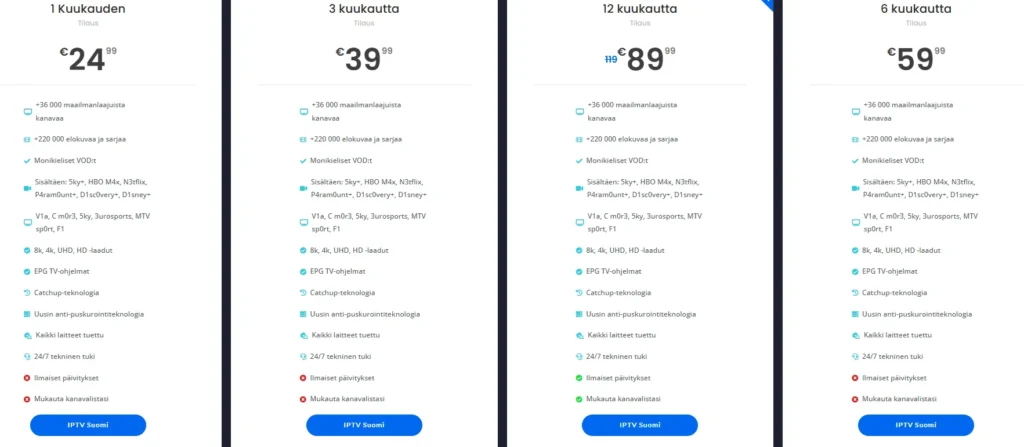
By following these tips and troubleshooting steps, you can enhance your experience with IPTV M3U on Firestick and enjoy seamless streaming. For more information on IPTV services and channels, visit Pro IPTV Suomi. If you need assistance with installation or have any questions, feel free to check out our installation guide or contact us directly via WhatsApp at this link.
With the right setup and knowledge, you can fully enjoy the vast array of content available through IPTV on your Firestick.
Using IPTV with Firestick – Tips and Troubleshooting
Fixing Common Buffering and Playback Issues
When using IPTV M3U on Firestick, encountering buffering and playback issues can be frustrating. However, there are several effective strategies to troubleshoot and resolve these common problems, ensuring a smoother streaming experience. Here are some actionable tips:
- Check Your Internet Connection:
- A stable and fast internet connection is crucial for streaming. Aim for a minimum speed of 10 Mbps to avoid interruptions. You can test your internet speed using online tools like Speedtest.net.
- Restart Your Firestick:
- A simple restart can often resolve buffering issues. Unplug your Firestick from the power source, wait for about 30 seconds, and then plug it back in. This can refresh the device and clear temporary glitches.
- Close Background Applications:
- If multiple applications are running in the background, they may consume bandwidth and resources. Close any unnecessary apps to free up memory and improve performance.
- Use a Wired Connection:
- If feasible, connect your Firestick to the internet using an Ethernet cable instead of relying on Wi-Fi. A wired connection typically offers a more stable and faster internet experience, reducing buffering.
- Adjust Streaming Quality:
- Some IPTV players allow you to adjust the streaming quality. Lowering the quality can help reduce buffering, especially if your internet connection is not optimal. Check the settings in your IPTV player Firestick app for this option.
- Update Your IPTV Player:
- Ensure that your IPTV player, such as IPTV Smarters Pro, is updated to the latest version. Updates often include performance improvements and bug fixes that can enhance your streaming experience.
- Clear Cache:
- Clearing the cache of your IPTV player can help improve performance. Go to Settings > Applications > Manage Installed Applications, select your IPTV player, and choose Clear Cache. This can free up space and improve loading times.
How to Update Your M3U Playlists on Firestick
Keeping your M3U playlists updated is essential for accessing the latest channels and content. Here’s a straightforward guide on how to update your M3U playlists on Firestick:
- Open IPTV Smarters Pro:
- Launch the IPTV Smarters Pro app from your Firestick home screen.
- Access Playlist Settings:
- Navigate to the settings or options menu within the app, usually represented by a gear icon.
- Update M3U URL:
- Locate the section for managing your playlists. Here, you can either edit the existing M3U URL or add a new one.
- Enter the new M3U URL provided by your IPTV service provider. This ensures you have access to the latest channels.
- Save Changes:
- After updating the URL, make sure to save your changes. The app will refresh the playlist and load the new channels.
- Restart the App:
- For the changes to take effect, it’s advisable to restart the IPTV Smarters Pro app. This can help in loading the updated playlist correctly.
Using VPN Safely with IPTV M3U in Finland
Using a VPN (Virtual Private Network) with your IPTV M3U on Firestick can enhance your privacy and security while streaming. Here are some tips for using a VPN safely:
- Choose a Reliable VPN Provider: Select a reputable VPN service that offers fast speeds and strong encryption. Look for providers that have a good track record with streaming services.
- Connect to a Nearby Server: For optimal performance, connect to a VPN server that is geographically close to your location. This can help reduce latency and improve streaming quality.
- Avoid Free VPNs: While free VPNs may seem appealing, they often come with limitations such as slower speeds, data caps, and potential security risks. Investing in a paid VPN service is usually worth it for a better experience.
- Check for IP and DNS Leaks: Ensure that your VPN is not leaking your real IP address or DNS requests. You can use online tools to check for leaks and confirm that your VPN is functioning correctly.
- Follow Local Laws: Be aware of the legal landscape regarding IPTV and VPN usage in Finland. While using a VPN is generally legal, accessing unauthorized content may have legal implications.
By following these tips and troubleshooting steps, you can enhance your experience with IPTV M3U on Firestick and enjoy seamless streaming. For more information on IPTV services and channels, visit Pro IPTV Suomi. If you need assistance with installation or have any questions, feel free to check out our installation guide or contact us directly via WhatsApp at this link.
With the right setup and knowledge, you can fully enjoy the vast array of content available through IPTV on your Firestick.
Frequently Asked Questions about IPTV M3U Firestick
How to Install IPTV M3U on Firestick?
Installing IPTV M3U on Firestick is a straightforward process that allows you to access a wide range of channels and content. Here’s a step-by-step guide to help you through the installation:
- Prepare Your Firestick:
- Ensure your Firestick is connected to your TV and has a stable internet connection.
- Navigate to Settings > My Fire TV > Developer Options and enable Apps from Unknown Sources.
- Download the Downloader App:
- Use the search function on your Firestick to find and install the Downloader app. This app will help you download the necessary IPTV player.
- Install IPTV Smarters Pro:
- Open the Downloader app and enter the URL for the IPTV Smarters Pro M3U APK file.
- Click Download and then Install once the download is complete.
- Launch the IPTV Player:
- Open the IPTV Smarters Pro app from your Firestick home screen.
- Enter your IPTV subscription details when prompted.
- Add Your M3U Playlist:
- In the app, select Load Your Playlist or File/URL.
- Choose M3U URL and enter the link provided by your IPTV service.
- Click Add User to save the playlist.
- Start Streaming:
- Once the M3U playlist is loaded, you can start browsing channels and enjoy your IPTV content.
By following these steps, you can easily set up IPTV M3U on Firestick and access a world of entertainment.
Additional FAQs
- What are the best free IPTV M3U playlists for Firestick?
- While there are free IPTV playlists available, they often come with limitations in terms of channel selection and reliability. It’s advisable to opt for paid services for a better experience.
- How to update M3U lists on Firestick?
- To update your M3U playlists, open the IPTV player, navigate to the settings, and enter the new M3U URL provided by your IPTV service. Save the changes and restart the app for the updates to take effect.
- Can IPTV M3U streaming be blocked by ISP in Finland?
- Yes, ISPs may monitor and block access to unauthorized IPTV services. Using a VPN can help bypass such restrictions while maintaining your privacy.
By addressing these frequently asked questions, you can better understand how to effectively use IPTV M3U on Firestick and navigate the associated legal landscape. For more detailed information, check out our installation guide or explore our IPTV channel list.
Conclusion: Why Choose IPTV M3U for Your Firestick
In summary, utilizing IPTV M3U on Firestick opens up a world of entertainment possibilities right in your living room. With a wide selection of channels, high-quality streaming, and the convenience of on-demand content, it’s an excellent choice for anyone looking to enhance their viewing experience. Here are some key benefits to remember:
- Extensive Channel Selection: Access thousands of channels from both local and international sources.
- User-Friendly Setup: Our step-by-step guides make installation a breeze, even for beginners.
- 24/7 Support: Enjoy peace of mind with round-the-clock technical support to assist you whenever needed.
- Up-to-Date Content: Stay current with the latest IPTV offerings and updates to your M3U playlists.
Choosing a reputable provider like Pro IPTV Suomi ensures that you enjoy a legal and reliable streaming experience. If you have any questions or need assistance with your setup, don’t hesitate to reach out!
👉 Ready to start your IPTV journey? Visit our pricing page to explore our subscription options or contact us directly via WhatsApp at this link. We’re here to help you every step of the way!
